03 / FROM RECORDING TO NOTES
How to convert WAV to MIDI in 3 steps
- 01
Export the original clean PCM WAV from your recorder or DAW, with headroom below clipping. Lossless input preserves the attack evidence already present in that take.
- 02
Run note detection on that master and compare attack timing and release tails. Making a WAV from an MP3 cannot restore information discarded by compression.
- 03
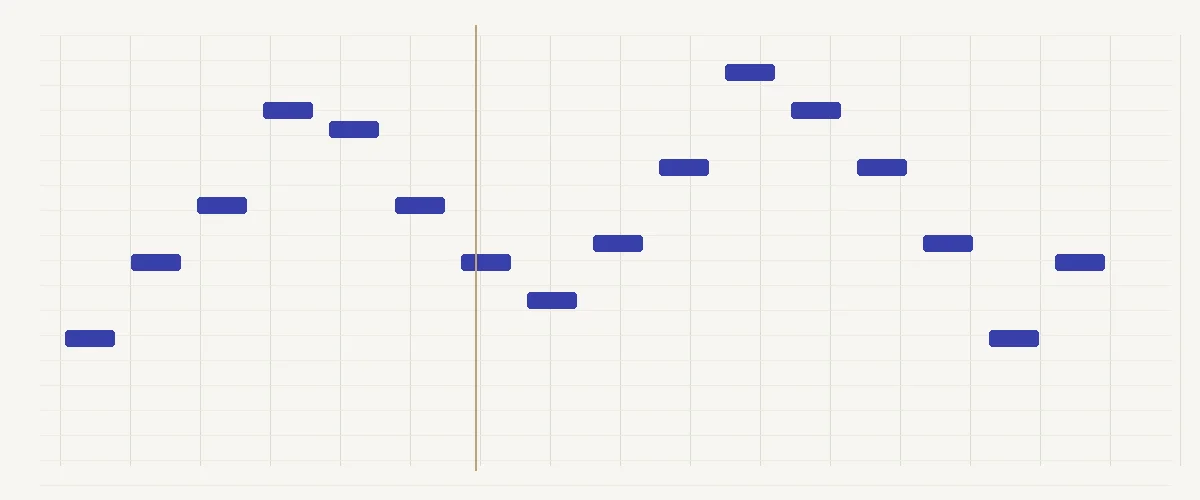
Inspect repeated piano strikes and pedal tails in the roll before downloading MIDI. Keep the unchanged WAV beside the MIDI in your notation editor to check note lengths.
What changes when a WAV becomes MIDI?
WAV usually holds uncompressed PCM samples, although the container can store other encodings. Those samples describe the complete waveform, including room sound and background noise. MIDI instead describes discrete events. Converting WAV to MIDI means estimating which notes could have produced part of that waveform. Microphone tone, breath noise and the particular resonance of an acoustic instrument stay in the WAV source, while the MIDI describes estimated notes.
Record for clear attacks rather than larger file sizes
Leave headroom when recording. Once the waveform is clipped, reducing the volume later does not reconstruct the original attack. Position the microphone so that the intended instrument dominates without excessive room reflections. For a synthesizer or electric instrument, a direct recording can avoid background noise. Disable unnecessary effects when the purpose of a take is to capture notes for later rearrangement.
A higher sample rate increases storage and decoding work, but it does not resolve two instruments playing together. Keep exports straightforward: a short standard PCM recording is easier to diagnose than an unfamiliar compressed encoding wrapped in WAV. Do not normalize a silent or very noisy take simply to make its waveform look larger. Listen for distortion and interference before running detection.
After conversion, compare the first attack and final release of each phrase. Repeated notes can become one event if the attacks are weak. A long ringing tail can create an apparently sustained note beyond the player’s release. Change instrument sounds only after checking the underlying event pattern. This keeps playback preference separate from the accuracy of the transcription.
Compare WAV exports with their recording settings visible. At 44.1 kHz, 16-bit stereo PCM stores 176,400 audio bytes per second; at 96 kHz with the same bit depth and channel count, it stores 384,000. The second file contains about 2.18 times as much sample data for the same duration. That is a storage calculation, not a measured transcription improvement. Raising the sample rate after recording also leaves the original instrument overlap and room reflections in place.
A practical attack check is to choose four repeated piano notes at a comfortable tempo. Listen for four separate beginnings in the original WAV, then compare those positions with the detected events. If the source has distinct strikes but the MIDI joins two together, mark the join for correction. If the original itself has a blurred second strike under heavy sustain, make a fresh, less reverberant take before expecting a file-format change to clarify it.
Pedal and release timing deserve separate attention. The moment a pianist lifts a finger, the moment the damper returns and the moment the room becomes quiet can differ. A waveform tail therefore gives an imperfect guide to a written note's duration. Review one phrase with obvious rests and listen for sound crossing each rest. Shortening a note event in your music editor is a musical decision; preserving a long recording tail is a different aim.
Keep an export checklist with sample rate, bit depth, channels and excerpt duration. For a direct instrument take, inspect both channels before averaging them: a stereo effects patch may spread delayed material away from the main attack. If you make a dry comparison, export it from the original project rather than processing a downloaded MP3 into a larger WAV. Use the same passage and start time so that you can attribute a changed result to the recording you changed, rather than to different musical material.
04 / A FEW THINGS TO KNOW
Frequently Asked Questions
01Is a 96 kHz recording necessary?
No particular high recording rate is required to obtain a useful musical sketch. The browser decodes the source and the detector uses its own analysis representation. Focus on a clean, unclipped instrument with distinct attacks. Keep the original master, but do not upsample an existing recording expecting that operation to reveal missing notes.
02Can I use a stereo WAV?
Yes, when your browser can decode its encoding. Analysis uses a mono representation, so phase and channel balance can affect the evidence presented to the detector. If an important instrument disappears when you listen in mono, prepare a focused export from the source project and compare that version without overwriting the stereo master.
03Why are sustained piano notes too long?
A piano continues to resonate after its initial attack, particularly with pedal or room reverberation. The model may interpret that energy as a longer held note. Compare the roll with the source at phrase endings and repeated notes. The downloaded MIDI should be treated as editable events rather than an exact account of the pedal performance.
04How should I check repeated notes in a WAV take?
Replay a phrase with repeated attacks and compare each onset with the piano roll. A ringing note and a newly struck note can overlap acoustically. Keep the recording available while correcting the exported events in your sequencer.
05Should I remove room effects before exporting WAV?
For a fresh recording, capture a dry take with distinct attacks where possible. Preserve your original performance and effects settings. A separate dry export makes it easier to distinguish instrument sustain from the room tail during review.
06Does a WAV conversion send the recording away?
The default WAV decoder, note detector and editing controls run in your browser. Uploading through the high-accuracy server route requires separate consent. Privacy & terms
Start with an audio recording? Open the MP3 to MIDI converter.