03 / FROM RECORDING TO NOTES
How to convert MP3 to MIDI in 3 steps
- 01
Choose an MP3 recording of up to 5 minutes. Start with one clear instrument or an unaccompanied melody, and keep a copy of the original.
- 02
Run the browser converter. Watch the actual decoding and detection stages, then compare the note preview with your recording.
- 03
Open the Studio, choose a playback sound and download the MIDI. Import it into your music software to correct any notes that need attention.
What can I transcribe?
Use one clear piano, guitar or sung melody as your starting point. Pitched attacks and steady sustained notes provide more useful evidence than conversation, room noise or applause.
Dense mixes need manual correction. Doubled vocals, percussion, reverb and instruments sharing the same register can produce extra notes or missing attacks. Review timing, octaves and repeated notes in the Studio, then finish detailed note corrections in your DAW. MIDI describes a performance; it does not recover the original singer’s voice, microphone sound or mastered mix.
MP3 to MIDI
An MP3 is a compact listening recording, while MIDI is editable note information. Choose an authorized excerpt whose melody you can already follow by ear, then compare the first attack and the last release against the preview.
Keep the original MP3 as a timing reference when importing the MIDI into a sequencer. Changing the playback patch can help you hear the phrase differently, but an instrument selection does not rerun transcription or prove which instrument played the source.
WAV to MIDI
A clean PCM WAV preserves the waveform of its source without another lossy encoding step. That can retain useful attack detail when the original recording was clean, but a noisy or clipped WAV still carries those recording problems.
Use the WAV to MIDI converter for an original recorder or DAW export. Converting an existing MP3 into WAV cannot restore information already discarded by MP3 compression.
Audio to MIDI
FLAC archives, OGG rehearsals and M4A phone memos need a compatible decoder before note estimation can begin. The container extension describes how audio is stored, not whether a melody is easy to isolate.
The audio to MIDI converter distinguishes decoding failures from musical uncertainty. For phone or meeting recordings, trim speech and silence to the musical idea; for a DAW project, bounce the intended instrument rather than the whole mix.
Song to MIDI
A finished song can contain vocals, bass, chords and drums at the same moment. Begin with an introduction or quieter verse where the desired line is audible, and keep the excerpt’s start time so the MIDI can be placed back against the reference.
Listen to one result track at a time before turning on the whole arrangement. A large note count is not evidence of accuracy: inspect questionable notes against the source and use your editor to correct unwanted accompaniment or octave errors.
What is MIDI?
MIDI is a set of performance instructions. A note event tells a player which pitch to sound, when it begins, how long it lasts and how strongly it was played. The file can also carry tempo, track names, instrument programs and other controls. The singer, room sound and microphone tone remain in the source recording rather than in these note instructions. A tiny MIDI file can therefore describe a long passage without storing the original audio.
Why compressed audio is harder to transcribe
MP3 compression discards information to reduce file size. The effect on transcription depends on the source: a close, steady piano recording may remain easy to follow, while a busy compressed mix can obscure the beginnings of individual notes. Converting that compressed file to WAV does not restore information already removed. Use the earliest clean recording you have, without repeatedly exporting it through messaging apps.
Choose a phrase with a clear beginning and ending. Trim long speech, applause and silence before processing. Avoid adding reverb or stereo widening to a recording made specifically for transcription. Listen for an instrument whose notes you can follow independently. If you cannot hear its line through the accompaniment, a lightweight browser model may also struggle to separate it.
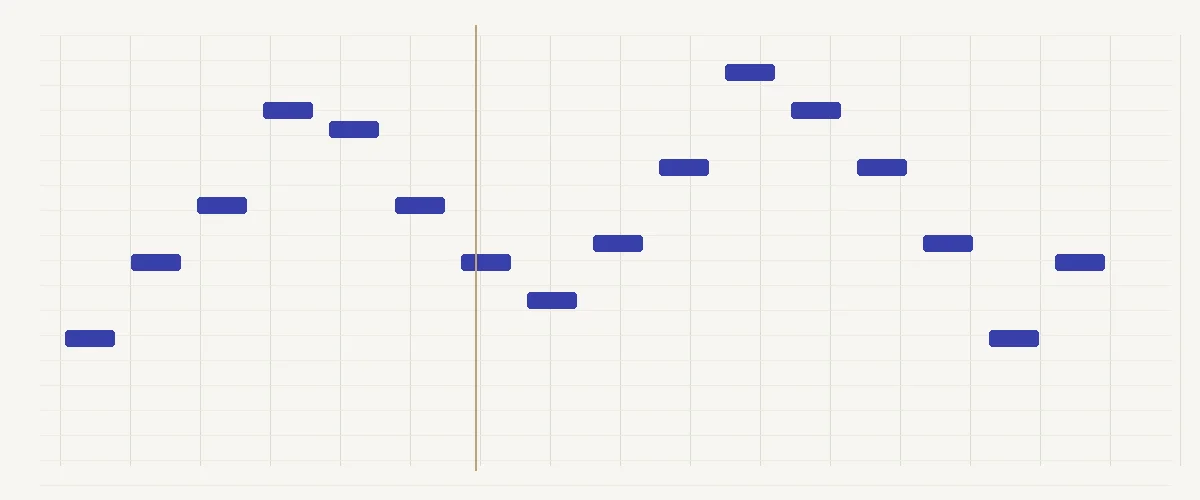
The local path accepts short recordings and leaves the file on your device. The high-accuracy server path is intended for more demanding material, but it is a separate upload decision and still needs musical review. Judge a result by the notes you can verify in the roll. Correct an octave error before trying new sounds, then listen at the original tempo before arranging the phrase.
04 / A FEW THINGS TO KNOW
Frequently Asked Questions
01My MIDI has wrong notes — what went wrong?
An accompaniment, overtone or reverberant tail can be interpreted as another pitch. Start by checking the original at that exact position. A cleaner isolated phrase often provides a more useful input than a finished mix. Changing the playback instrument changes the sound of detected notes; it does not rerun detection or remove false notes.
02Should I convert the MP3 to WAV first?
Not to recover quality. Decoding MP3 to WAV preserves the decoded signal but cannot restore details removed by the original compression. If you already have an uncompressed master, use that master instead. Otherwise try the MP3 directly, keeping the original so that you can compare note timing and pitch against it.
03What should I try for my first conversion?
Use a short melody with one clearly audible instrument and little background noise. A phrase you know well makes errors easier to spot. Check the first note, repeated notes, sustained endings and any octave changes in the preview. Download the MIDI only after you have listened to it alongside the source.
04Can I listen before downloading the MIDI?
Use the Studio playback controls to audition the detected phrase and compare it with your source. Try another instrument only after checking pitch and timing; a pleasing sound can hide an incorrect event.
05What should I save from an MP3 conversion?
Keep the source MP3 alongside the exported MIDI. The source preserves the performance you heard; the MIDI gives your sequencer note events to edit. Save mix settings separately if you plan to revisit this playback arrangement.
06Does this upload my audio?
Default decoding, transcription, editing and mix settings stay in your browser. The high-accuracy server route requires separate consent before uploading a recording.
07Is it free?
Quick conversion runs locally without a daily model allowance. High-accuracy mode provides 3 free transcriptions per day, resetting at 00:00 UTC. Browsers on the same public network share a network allowance; clearing storage does not create a new network allowance.
08Do I need to sign up?
No account is required for browser conversion. Choose a file and review the notes locally; the separate high-accuracy route is an upload and requires your permission before sending audio for server processing.
09How accurate is it?
Clear single-instrument recordings, isolated vocals and piano phrases are the intended starting points. Dense mixes need manual correction, and even a solo result can contain octave mistakes, missed repeated attacks or ringing tails. Listen alongside the original before arranging from the MIDI.
10What’s the longest file I can convert?
The input must fit both limits: 5 minutes and 25 MB (26,214,400 bytes). Uncompressed WAV can reach the file cap first; FLAC duration varies with compression. Trim a longer performance to the passage you need and keep the source intact. Long files take longer to decode and recognize, particularly on a phone; the progress display follows actual processing events.
11Is this the best free MP3 to MIDI converter?
For a short, clear musical idea you want to review locally and download as editable MIDI, yes. The useful fit is the combination of browser processing, a note preview and instrument controls. It is not a promise to recover every part of a mastered song or replace a carefully edited score. Privacy & terms