03 / FROM RECORDING TO NOTES
How to convert video to MIDI in 3 steps
- 01
Select a local video containing an authorized musical passage. Choose a short clip where the intended instrument is clearly audible.
- 02
Extract and decode the audio in your browser, then run note detection. Unsupported containers show an error rather than a fabricated result.
- 03
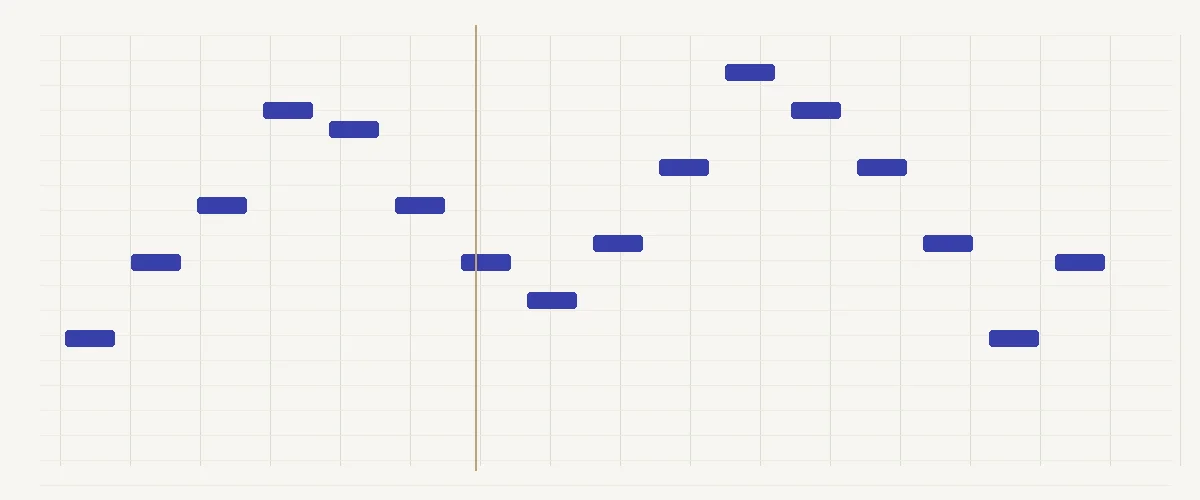
Review the resulting notes and compare them with the extracted soundtrack. Download the MIDI to continue in your music editor.
How does video to MIDI use the soundtrack?
A video file usually combines several streams inside a container. The visible images and the audible soundtrack are encoded separately, and there may be multiple audio streams. Transcription needs the audio samples, not the video frames. Extracting the soundtrack is a preparation step, followed by note detection as a separate stage. Decoding support depends on the encoding of the contained audio as well as the browser.
Make the soundtrack the subject of the test
Concert videos often include audience noise, echoes and speech over music. A close view of a guitarist does not mean that the camera microphone captured an isolated guitar. Listen to the soundtrack with your eyes closed and ask which musical line is easiest to follow. Crop to a passage where that line is exposed before expecting a useful local transcription.
Check for editing changes and timing offsets. A video may contain a soundtrack added after filming, so a visible hand movement may not align with the recorded onset. Transcription follows the audio timeline. If you plan to put the MIDI back against the clip, preserve the excerpt start time and account for any trimming when placing it in your editor.
For a screen recording of your own instrument software, a direct audio or MIDI export is often a cleaner reference than recapturing system sound. Use the video converter when the clip is the available source, then check pauses, dialogue sections and the final decay in the roll. Do not interpret detected speech fragments as musical notes simply because the extraction succeeded.
Distinguish an unsupported video container from a soundtrack with difficult music. An MP4 may contain different audio encodings, and an MKV extension alone tells you little about browser decoding. If extraction stops before recognition begins, confirm that the original clip plays with sound in a trusted local player. When you control the recording project, export its soundtrack directly for comparison. Preserve the video as the timing reference rather than repeatedly transcoding the whole clip to troubleshoot note detection.
Watch for cuts inside a musical phrase. A social clip can jump from a close-up to another take while the soundtrack continues, or replace the audio at the same edit point. Mark any obvious cut and listen across it without watching the picture. A sudden octave change in the result may correspond to a real soundtrack edit rather than a detection error. Choosing an uninterrupted phrase makes it easier to decide which changes came from the performance.
For synchronization, write down the excerpt's start time in the original video. If you trim away twelve seconds of introduction, a note at three seconds in the MIDI belongs near fifteen seconds in the original clip, before any separate synchronization adjustment. Match one clear attack near the beginning and another near the end. A constant offset and a growing drift are different problems: an offset suggests placement, while drift calls for checking the editor's time stretching or source timing.
A screen recording may include notification sounds, metronome clicks and the voice of a presenter over the instrument demonstration. Choose a passage where those interruptions are absent, or export the instrument bus from the session you own. For a camera recording, a nearby loudspeaker may dominate even when the visible performer is close to the lens. Review the extracted musical line as sound, not as evidence from hand movements. Keep the original clip available when correcting questionable attacks against its soundtrack.
04 / A FEW THINGS TO KNOW
Frequently Asked Questions
01Can I paste a video-platform URL?
This workspace processes local files rather than downloading media from platform URLs. Select a video you are authorized to use. A link and a local media file are different inputs, and platform access rules are separate from transcription. Keep a local reference clip so that you can compare the extracted soundtrack with the detected notes.
02Why does my MP4 fail even though it plays elsewhere?
The container may carry an audio codec that requires a decoder not supported by this browser. A desktop player can support additional codecs. Try exporting a conventional audio file from your authorized source. The converter distinguishes extraction and decoding errors from note detection so that an unsupported clip does not become an apparently successful empty transcription.
03Does the MIDI keep synchronization with the picture?
The note events follow the extracted audio timeline, not visual gestures. If you trim the clip, record the original excerpt start position yourself before putting the MIDI back into an editor. Watch for soundtracks added during editing. A visually convincing performance can be offset from its audio without the transcription process knowing why.
04What should I keep when trimming a performance video?
Save the original clip and note the excerpt start time. Choose a section with clearly audible music and enough space after the final attack for its release. This reference helps place the MIDI back on the video timeline.
05Why can a short video use substantial device memory?
The browser handles the video container and extracted audio before estimating notes. A three-minute clip can require several hundred MB on mobile. Trim to the musical passage and close other heavy tabs if your device struggles.
06Are the video frames uploaded during local extraction?
The default extraction and transcription path processes the selected local video in your browser. The high-accuracy server path requires separate consent before uploading the selected audio recording. Privacy & terms
Start with an audio recording? Open the MP3 to MIDI converter.